Showing posts with label tricks. Show all posts

Friday, May 18, 2012

Make Voip Calls for Free to anywhere in World

VOIP(Voice Over Internet Protocal) calls over the internet do cost the caller for calling through many service providers of VOIP like Skype and so on but Evaphone service provider let's the user make daily 2 Free VOIP Calls to anywhere while having some limitations like time limit of the specified call. The Time limit of the call does Vary with destination countries and places from some seconds of time to a maximum of 2 minutes per call.


The trick of making a call here is just visting the evaphone website and making a call by dialling the Number, This can be used to make both Local and International Calls. The site also has a catch for some countries where to call to those nations one must first register with the website while for most of the nations it is free of registration to make a call.

People with Dynamic IP Addresses can make many calls while Each of thier IP can make 2 calls so this basically clears of the limit for unlimited free VOIP calling over the net.

Make a Free Call
Read More...

Wednesday, January 25, 2012

Threaded Comments for Blogger Blogs (Custom templates & Blogger templates)

The Blogger has announced the Threaded comment style commenting widget for official blogger based blogs, which now makes the commenting style much simpler and easier to differentiate direct comments for the post and reply comments for a comment.
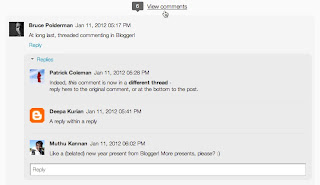


The Threaded comment activation for the blogs are different for both blogger based templates and custom blogger templates.The following steps are required to enable threaded comments in the Blog


For Official Blogger Templates ---->

Enabling threaded comments in official blogger templates is much easier and simpler and can be done by just enabling the blogger feed to full and embedding the comment form below posts automatically enables the threaded comments in the blog.

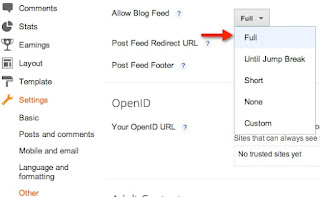
To check or change the settings in Draft.blogger.com view select: Settings > Other >, and then Full from the Allow Blog Feed dropdown

To check or change the settings in blogger.com view select: Settings > Site Feed >, and then Full from the Allow Blog Feed dropdown


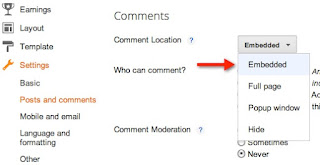
To check or change the comment form settings in draft view select: Settings > Posts and Comments, and select Embedded from the Comment Location dropdown.


To check or change the comment form settings in normal view select: Settings > Comments, and select Embedded below post in comment form placement option.


With the above steps done the reply link can be seen below the comments and threaded comment action takes place with replies to comments automatically in official blogger templates.

More info can be found out about this in google support.


For Custom Blogger Templates --->

As most of the blogger users use custom templates and not the default blogger based templates depending on their uses so the threaded comments for custom templates doesn't get active after following the steps for enabling threaded comment form like mentioned for default blogger templates.

Enabling of threaded comments widget for custom blogger templates requires a additional steps after following the steps of that mentioned by blogger or mentioned here above in official blogger templates. Here HTML code must be added(or replaced) for the threaded blogger comment widget to work.

The step by step procedure are

1) Follow the above steps mentioned for official blogger templates
2) Then Design > Edit HTML
3) Expand Widget Templates
4) Download Full template (As a precautionary measure before editing)
5) Search for the following Codes

Code 1


<b:if cond="data:blog.pageType == "item"">
<b:include data="post" name="comments">
</b:include></b:if>


and

Code 2


<b:if cond='data:blog.pageType == &quot;static_page&quot;'>
<b:if cond='data:post.showThreadedComments'>
<b:include data='post' name='threaded_comments'/>
<b:else/>
<b:include data='post' name='comments'/>
</b:if>
</b:if>
<b:if cond='data:blog.pageType == &quot;item&quot;'>
<b:if cond='data:post.showThreadedComments'>
<b:include data='post' name='threaded_comments'/>
<b:else/>
<b:include data='post' name='comments'/>
</b:if>
</b:if>


6) Now Replace the Code 2 with Code 1 while keeping the Code 2 which appears before Code 1 untouched.

7) Save your Template.

Now Visit the Blog, The reply links are found for each comments and threaded comment widget is been activated in the blog and threaded replies can be posted for comments in the blog .

Finally if one has applied The threaded comment on to their blog and want to remove it, then they can must follow till step 4 and in step 5 they must search for Code 2 which will appear twice. replace the code 2 with Code 1 the 2nd time Code 2 is appearing which will remove the threaded comment feature. If finding out Code the 2nd time becomes confusing then just replace Code 2 both the times also with Code 1 to make the stuff removed.

Note: The disadvantages of present form of blogger threaded comment is that author comments cannot be highlighted, custom smiley's cannot be activated, comment cannot be numbered and so on and this minor problem can be fixed with change in the code which is inserted by blogger automatically while enabling threaded comments and will come up with a solution for all these things very soon in the blog so that customized threaded comments will be better and used. This is the main reason Tipsntweaks is not using threaded comments as of now in its blog but will use it customized threaded widget shortly which is gonna be posted on the blog very soon.

Any Queries or Questions regarding the trick use the comment form below.
Read More...

Monday, November 21, 2011

A Mega List of 70+ Google Search Easter Eggs

Easter eggs of Google has became a bit more famous these days after the release of some easter eggs like tilt, do a barrel roll etc.. than it was before.


Here is a small list of Easter eggs of google given below and with time passing the list would be updated with the help of both ourselves and our readers suggestions.

The Easter eggs of Google work in browsers like Chrome, Safari, Firefox 7+ versions and some of the easter eggs can be used from clicking on the "I'm feeling Lucky" button with the corresponding codes for their corresponding effects. For people who have instant search on it must be disabled to activate "I'm feeling Lucky" button and it can be done by Options – Search Settings and select “Do not use Google Instant” or use the normal search and just select the first answer Google will return.

1) Arithmetic(calculator) Easter eggs(6) --->

The Calculator accepts humourous units of measurements including the beard-second (5 nm), Potrzebie(2.2633mm), donkeypower (250.033167 watts), the prefix hella- (10^27), etc...

Also calculation of any numbers like 5*7896 or 98756*(765425/576943) etc.. in equation form when typed in search bar provides the exact answer for it.
  • "the answer to life, the universe, and everything" gets 42 in result.
  • "the answer to the ultimate question of life, the universe, and everything" also gets 42.
  • "the lonliest number" gets 1.
  • "the number of horns on a unicorn" gets 1.
  • "a bakers dozen" gets 13.
  • "once in a blue moon" gets 1.16699016 × 10⁻⁸ hertz


2) Google Search Easter eggs(22) ---->
    • Searching for "tilt" or "askew" makes the page to tilt to its right a bit.
    • "recursion" shows did u mean: recursion and allows the searcher to recursively search for recursion.
    • "do a barrel roll" or "z or r twice" results in 360 degree rotation of the page. The same barrel rolling for this page of the site can also be done by clicking the link TipsNTweaks Barrel roll.
    • "anagram" shows did u mean: nag a ram.
    • "ascii art" and then check out the google logo in top left to the search bar.
    • "let it snow" makes the page to simulate a snowfall and frost on the search results After a while, the search screen fogs up and the blue search button changes to Defrost, enabling the user to defrost the page clicking and rubbing it like a window. Interaction with the actual search screen is disabled until the Defrost button is pressed.Search screen will cease to fog up once the Defrost button is pressed.(the easter egg released before christmas is not working anymore)
    • "hanukkah" when searched shows a row of stars like stars of david below the google search box.(the easter egg released before hanukkah is not working anymore)
    • "kwanzaa" Searching Google for kwanzaa will show the image of 7 candles 7 times below the google search box.(the easter egg released before kwanzaa festival is not working anymore)
    • "christmas" or "christmas lights" or "santa claus" or "12 days of christmas" or "father christmas" or "merry christmas" or "candy cane"(thanks to our reader boundrys for notifying this easter egg). A google search for any of these terms shows a row of christmas lights below the google search box.(the easter eggs released before christmas is not working anymore)
    • "hexadecimal" search in google gives the hexadecimal code for the search below the search bar.
    • "octal" google search for ocatal gives the result of value of ocatal in octal number system just below the search bar.
    • "Binary" google search for Binary gives the equivalent value of binary in binary numbering system just below the google search bar.
    • "searching for jason isaacs" on the google uk based version gives the result as "Hello to Jason Isaacs" which in turn is a reference to a kermode and mayo's film reviews as it greets jason isaacs with hello every week.
    • "qingming festival" A google search for the term gives a view of small leaves of a tree's branches and chinese wish beneath it. the festival is celebrated as ancestors day by remembering their ancestors and performing some rituals which is short is called as qingming in chinese.
    • "Zerg Rush" search of google gives an wonderfull playfull experience of gaming where the bubbles come out and erase the data on the search screen if it is not shot down and people can try shooting down as many bubbles as possible before the screen is filled with bubbles in shape of 2 G's like " G G" and the number of bubbles shot down at the end will present as points which can be posted to their accounts. A more detailed view of this new easter egg and its structure is explained here.


3) I'm feeling Lucky easter eggs(47) --->

There are many easter eggs in this category and it will be more fun for the user to try it unknowingly of what is the output of the search so the search results for these things aren't explained here.
    • "google gravity" (still data can be searched in google after this)
    • "google sphere"
    • "google loco"
    • "epic google" (after typing this, look for "Check out my little brother, Weenie Google" at the bottom of the screen)
    • "find chuck norris"
    • "google flight simulator"
    • "let me google that for you"
    • "google gothic"
    • "google pacman"(a pacman game can be played from it)
    • "google guitar"
    • "google pirate"
    • "google rainbow"
    • "google reverse"
    • "elgoog"
    • "who is the cutest person in the world" or "Who is the cutest?"
    • "google pig latin"
    • "google blue" (can be done for other colors also and only google green gets to a renewable energy page rest has same effect with corresponding color difference as typed)
    • "google pond" (also google painter gives the same effect of that an google pond instead of the painter one's which can also be seen in next easter egg's category with direct links given below)
    • "goglogo"
    • "google is god"
    • "google is gold"
    • "google 133t"
    • "ewmew fudd"
    • "google gangster"
    • "google bork"
    • "funny google" ( any names can be set)
    • "xx-klingon"
    • "xx-piglatin"
    • "xx-hacker"
    • "googles by kids"
    • "psychic google"
    • "2204355"
    • "Annoying Google"
    • "LOL Limewire"
    • "google gulp" a search on this will get to google autodrink on line of smart drink to enhance surfing efficiency and which is one of the most famous google hoaxes(thanks to our reader plavanga for notifying us this old forgotten easter egg of google).
    • "Blackle" search will get a custom black background google search engine which aims to save power by displaying in black(thanks to our reader rosy for notifying the blackle google easter egg)
    • "Google Mentalplex"
    • "Google Chart"
    • "Google Pigeonrank"
    • "Google Fool Animation"
    • "Googlunaplex"
    • "Google Virgle"
    • "Google gDay"
    • "Google Chrome 3D" ( A google chrome can be downloaded to browse things in 3D as per googles April fool joke of 2010)
    • "Google Moon"
    • "Google Tisp"
    • "define an english person" ( Thanks to our reader Robert for notifying this trick) 

4) Some random easter eggs with direct links to access them(15) ---->

Update 21/1/2012: The total Number of Easter eggs in the article is 81 as of now from previous 70 and hoping for the best so that it reaches 100 atleast quickly.Kindly do notify any other easter eggs which you know and is not present in the list above.The Easter eggs of google released before Christmas, new year, hanukkah and kwanzaa occasions are not working now anymore.Still the images of those search results can be seen in our other easter egg post here.

Update 1/1/2012 : 14 more google search easter eggs have been added to take the list to 70 from 56 as of now, out of which around 9 were told in the other easter egg post and finally any more new easter eggs can be notified to us by commenting below and which will be added here ASAP.

Update 18/12/2011 : 3 more new Google search easter eggs realeased recently(the christmas gift) named "let it snow", "hanukkah", "kwanzaa" and "christmas or christmas lights or santa claus" are explained here.
Read More...

Monday, May 30, 2011

Youtube Video tricks

Youtube is a Google owned vast Video sharing site which has plenty of high quality and informative videos in it.

Here are some of the tricks which can be used on youtube videos of that particular video url for the desired kind of the result as mentioned with the trick.

1) View high quality videos : Youtube gives you the option to switch to high quality videos for some of the videos, however you can check if a video is available in high quality format by appending ‘&fmt=18′(stereo, 480 x 270 resolution) or ‘&fmt=22′(stereo, 1280 x 720 resolution) for even higher quality.

2) Embed Higher Quality Videos : While the above trick works for playback, if however you want to embed hig quality videos you need to append “&ap=%2526fmt%3D18″ and “&ap=%2526fmt%3D22″ to the embed url.

3) Cut the chase and link to the interesting part : Linking to a video where the real action starts at 3 minutes 22 seconds, wondered if you could make it start at 03:22? You are in luck. All you have to do is add #t=03m22s (#t=XXmYYs for XX mins and YY seconds) to the end of the URL.

4) Hide the search box : The search box appears when you hover over an embedded video. To hide the search box add ‘&showsearch=0′ to the embed url.

5) Embed only a part of Video : Just append ‘&start=30′ to skip first 30s of the video. In general you can modify the value after start= to the number of seconds you want to skip the video for.

6) Bypass Youtube Regional Filtering : Some videos are only available in certain parts of the world. Your IP Address is used to determine your location and then allow or deny access to the video. Change the url from http://www.youtube.com/watch?v=<somecode> to http://www.youtube.com/v/<somecode>

7) Download Video : Although not inherently a youtube trick but useful all the same for downloading videos. Just change youtube to kickyoutube in the url of the video and it will take you to kickyoutube.com with all the options for downloading the video you were watching. Firefox Addons like downloadvideohelper, grabitall, youtubevideodownloader etc.. also can be used to download the video from the youtube.

8) Autoplay a Video : If you want your embedded video to start playing automatically, once again you can do so by simply modifying the url. In this case you need to append the string “&autoplay=1” to the url and remove everything before and after the embed tag.


9) Loop a Video : If you wish to loop a video add the string “ &loop=1” to the end of the url.


10) Disable related videos in YouTube’s embedded Player : Many webmasters may want to disable related videos in YouTube’s embedded player since it encourages the reader to navigate away from the current website. Once again the solution is as simple as appending the string “rel=0” to the video URL.

Instead of manually modifying the embed code you can let a new service called VTubeTools do it. VTubeTools.com allows you to customize your YouTube player with a few clicks. You can resize the player, autostart the video, loop the video and enable high quality version. It also allows you to set custom background (you can just change the colours or even use your own background picture).

11) Embed a Part of a YouTube Video : Youtube supports a parameter called “start” that allows start playing an embedded video after a specified number of seconds. For example if the interesting part of the video begins only after 20 seconds you need to use the code &start=20.

Example Code:
<object width=”425″ height=”344″><param name=”movie” value=”http://www.youtube.com/v/KyuPDRflFDU&hl=en&fs=1&start=20“></param><param name=”allowFullScreen” value=”true”></param><embed src=”http://www.youtube.com/v/abcdefghijk...tart=20” type=”application/x-shockwave-flash” allowfullscreen=”true” width=”425″ height=”344″></embed></object>
Alternatively you can use the service Splicd to extract only a certain portion of a Youtube video.
Read More...

Sunday, May 29, 2011

How to hide files and folders in JPEG image file

A File or Folder of any size can be hidden in an JPEG file by compression techniques and masking it in the image file.

Steps to hide a file in a JPEG images are --
  • Create folder in any of the hard disk drive.(c: \New Folder)
  • Then put some files whichever you want to hide in New Folder, as well as a JPEG image that you would like to hide the files in.
  • Then select all the file which you want to hide and add to ZIP or RAR .
  • Now create zip or rar files which you want to hide,
  • After this go to Windows Start menu, select Run and type cmd.
  • Type “cd \” then type “cd New Folder” press enter
  • Type “copy /b image.JPG + NewFolder.rar image.jpg”, here you have to Replace the name “image” with the name of your image, and replace “New Folder” with the name of your compressed file.)
  • Then you get the system message “1 file(s) copied.”
  • Now you can go ahead and delete the original files, except for the newly formed Image.
  • Then you get the files in your image for that you need to do is right-click on the image then only you will get the option of extracting it. Extract the image to get the hidden files.

NOTE :  This is a old technique which hackers used to do steal the data of the target and it can be done on stuffs easily even now so when u browse the net make sure you won't click these kind of suspicious images hosted in some of the suspicious sites just to steal the data of the victim and viruses also can enter a system when a image of these kind is clicked.

The method to find out either the image is embedded with some file or not is check the extention of the JPEG image file if it is just plain JPEG file then it is just an image if it is something other like jpeg.exe, jpeg.rar and so on then that particular image is an embedded image with some file in it.

The topic here is just for information so that our readers doesn't fall prey for these kind of stuffs.Tipsntweaks is in no way responsible for any use or misuse done based on the trick which is given for educational purpose alone.
Read More...